
Overview
This Building Block provides a mechanism for connecting Blackboard Learn 9+ with external tools which support the IMS Basic LTI or LTI 1.1 specification. LTI is a mechanism for connecting tool consumers (systems such as virtual learning environments or learning management systems) with tool providers (external learning applications which provide additional functionality within a course, such as a blog, wiki, assessment tool, or some restricted content).
Support for Basic LTI was introduced by Blackboard in Learn 9.1 SP4; however, this building block supports all releases of Learn 9 and also provides support for the unofficial Basic LTI extension services (see below) and LTI 1.1 (which includes an Outcome service). Whilst the specification is still being developed, Basic LTI (now known as LTI 1.0) and LTI 1.1 provide an important step towards enabling external tool providers to support different flavours of tool consumer with a single integration. From a tool consumer perspective it also opens up new opportunities for collaborative work between users of different platforms (or just different installations of the same platform).
To download a copy of this Building Block, follow the link to OSCELOT in the Licence section at the bottom of this page.
Note that this page has not yet been fully updated with the changes included in release 2.3.1
Acknowledgements
The support of the following organisation is gratefully acknowledged:

home of SoftChalk Cloud - Create. Connect. Inspire!

home of PebblePad - not just an eportfolio
Such support assists with the ongoing development and enhancement of this Building Block allowing LTI solutions which fit the needs of tool providers to be delivered to users of Learn 9. If you have any specific needs or would like to support this project, please contact the author.
System requirements
The BasicLTI Building Block is written for Blackboard Learn 9.0 (or higher). It includes the following dependent Java library files:
- b2context.jar, release 1.1.00 (or higher)
- org.apache.commons.httpclient
- oauth-core.jar
Installation
This Building Block is installed by a Learn 9 system administrator in the same way as other Building Blocks. The following attribute privileges are required to be approved when making the Building Block active:
| Type | Name | Action |
|---|---|---|
| attribute | user.authinfo | get |
| attribute | user.personalinfo | get |
| persist | Content | create,modify |
| persist | ContentHandler | create,modify,delete |
| persist | GroupAssignment | create,delete |
| persist | Outcome | create,modify,delete |
| persist | OutcomeDefinition | create,modify |
| persist | OutcomeDefinitionCategory | create,modify |
| persist | OutcomeDefinitionScale | create,modify |
| java.net.SocketPermission | * | connect |
Configuration settings
The Building Block may be configured from the System Admin tab by either:
- clicking on the Basic LTI tools link (available on the Tools and Utilities module)
- clicking on the Settings button against the Building Block entry on the Installed Tools page from the Building Blocks link
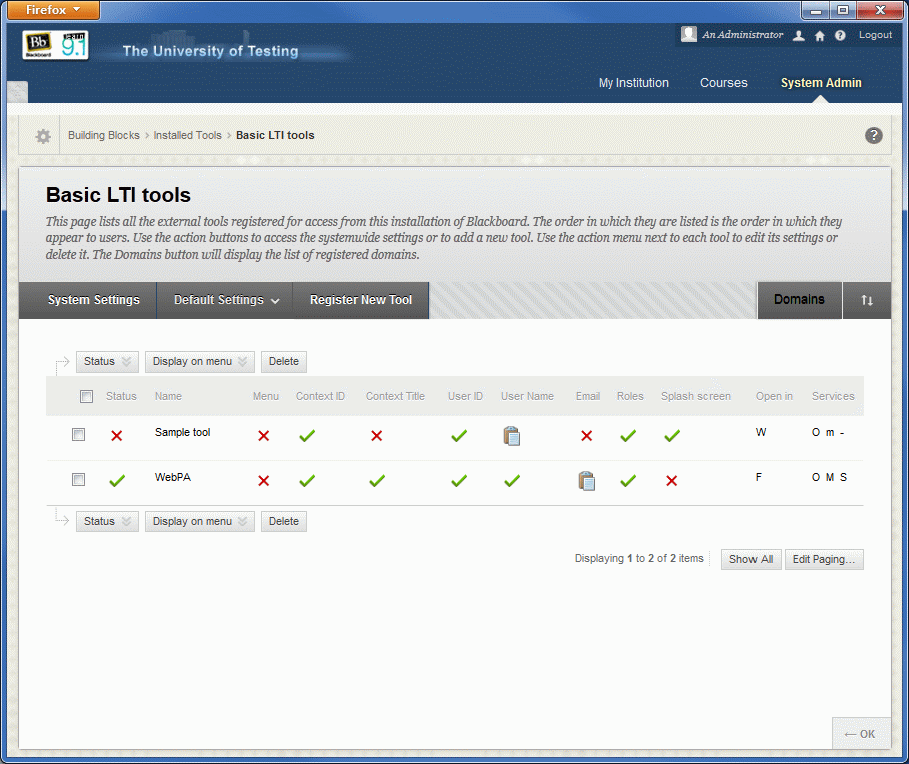
The main page displays a list of any existing tool provider registrations with a summary of the settings
selected for each. The order of the tools can be changed (using the Learn 9 drag-and-drop functionality) and.
its status updated - when a tool is disabled it is not available for use within courses. The action menu
against the title of each tool provides access to options for editing the registration.
System settings
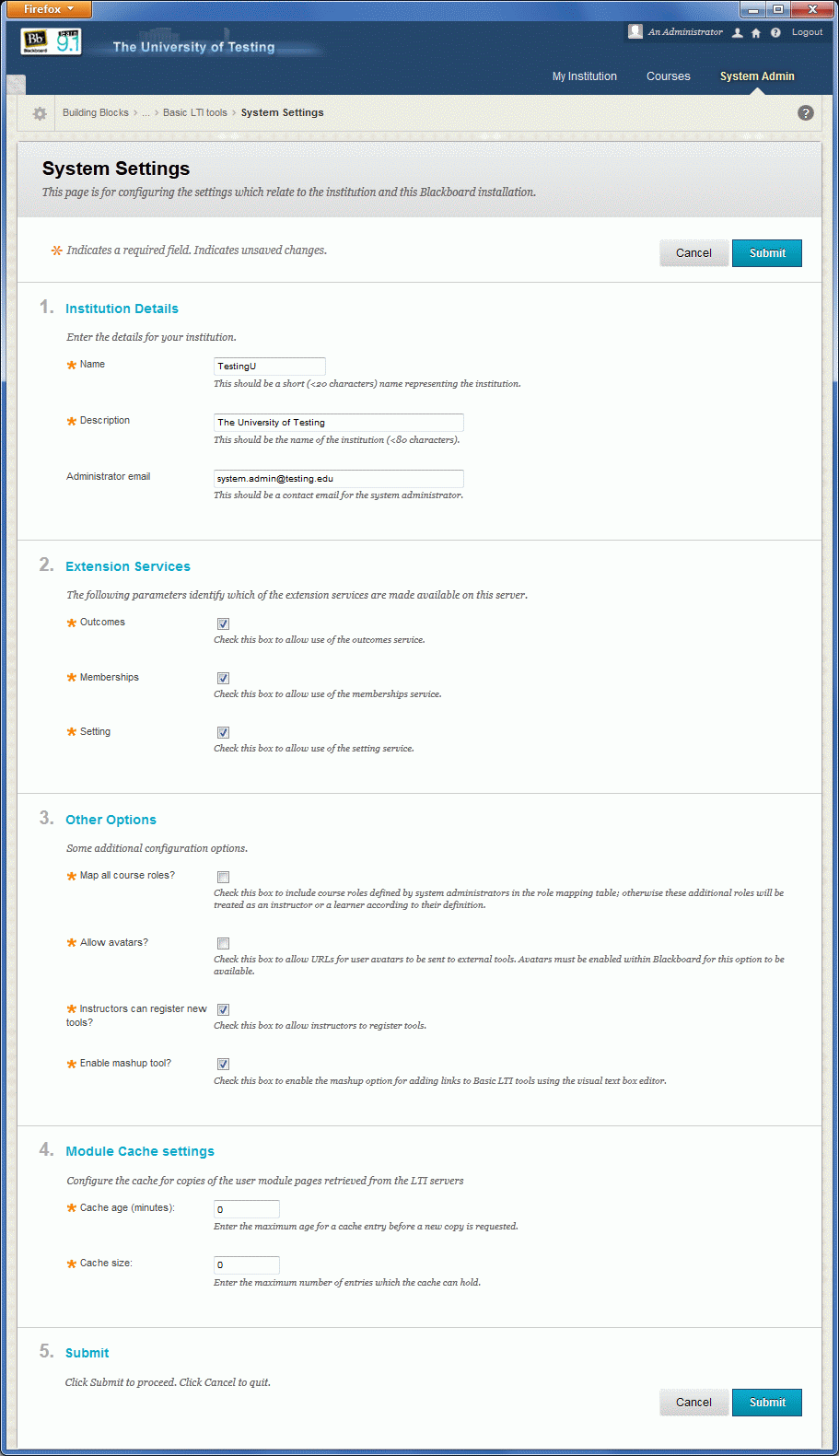
Click on the System Settings button to specify the default installation settings.
Textual default settings are dependent on the current language pack and so may differ from
those specified below.
Institution details
| Name | Required? | Description |
|---|---|---|
| Institution name | Yes | A short name for the institution (e.g. UoT) |
| Institution description | Yes | Full name for the institution (e.g. University of Testing) |
| Institution administrator email | No | An email contact for the institution (e.g. system.admin@testing.edu) |
Extension services
Check the box against the name of an extension service to enable it for the server. See below for information about support for the extension services. If the box is not checked then no requests for this service by tool providers will be accepted.
Other options
This section can be used to enable the following options:
- allow roles to be mapped for any custom course roles; otherwise a custom course role will be treated as either an instructor or a teaching assistant depending upon whether it has been given the capability of "Treat Users with this Role as Instructor";
- allow avatar URLs to be sent to tool providers (avatars must also be enabled within Learn 9 as well before a tool can support avatars;
- allow instructors to add their own tool registrations in courses (in addition to having access to those defined by the system administrator).
Defining a tool
Connections to tool providers can be defined in three different ways:
- Register a system-wide tool by entering its settings via the System Admin tab;
- Register a course-specific tool by entering its settings via the Course Tools area of the Control Panel (this is only available if the option has been enabled, see above);
- Register a course-specific tool by entering its launch URL via a course content item.
In all three cases, it is possible for an XML description of the tool to be used to initialise the settings (see below).
Initial registration
Register by settings
Click on the Register New Tool button to register a new tool provider, this will display the
Registration Settings page.
Connecting to each tool provider requires three pieces of data: a URL, a consumer key and and shared secret.
These details will be provided by the tool provider and should be entered into the second section of the registration
form. Take care to make sure these details are entered accurately; errors will cause connections to fail.
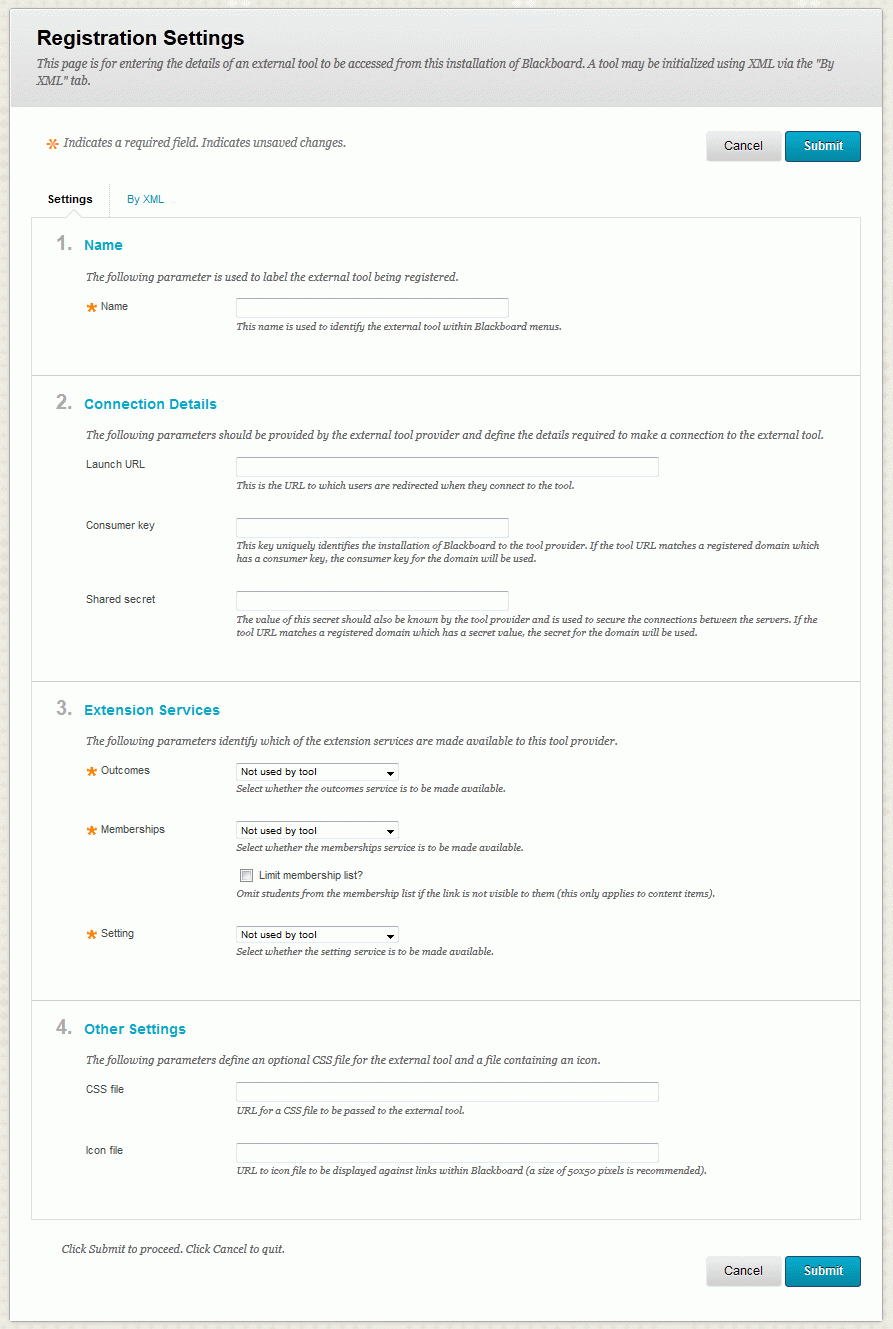
If the tool provider uses any of the extension services (including the Outcome service supported by LTI 1.1), they should be selected on this page. The Used but not required by tool option allows the decision to be delegated to the course instructor. The services selected are summarised in the final column on the main page; a "x" indicates that the service is not enabled on the server (see the System Settings page above), a "-" indicates that the service is not selected, "O", "M" and "S" indicate that the Outcomes, Memberships and Setting services are selected, respectively (a lower case letter indicates that the service is optionally selected). Consult the tool provider about whether any of the services are required.
Normally the memberships service will send a full list of enrolments to the course when it is requested by a tool provider. This list may include users who do not have access to the link if a membership-based adaptive release criterion has been applied. An option is provided, therefore, to restrict the list to only students for which the link is visible; anyone assigned the LTI role of Instructor will also be included in the list. For group-based access restrictions to a tool to be reflected in the list returned by the memberships service, make the tool available as a content item and assign it to groups under the "Groups" section, rather than setting membership-based adaptive release rules.
The URL of a CSS file may also be passed to the tool provider on launch; some tool providers may use this option to allow users to change the appearance of their tool (e.g. to better match the Blackboard colour scheme). The default icon used when displaying links to tools in a course can be overridden by entering a URL to an alternative image in the "Other Settings" section.
Register by URL
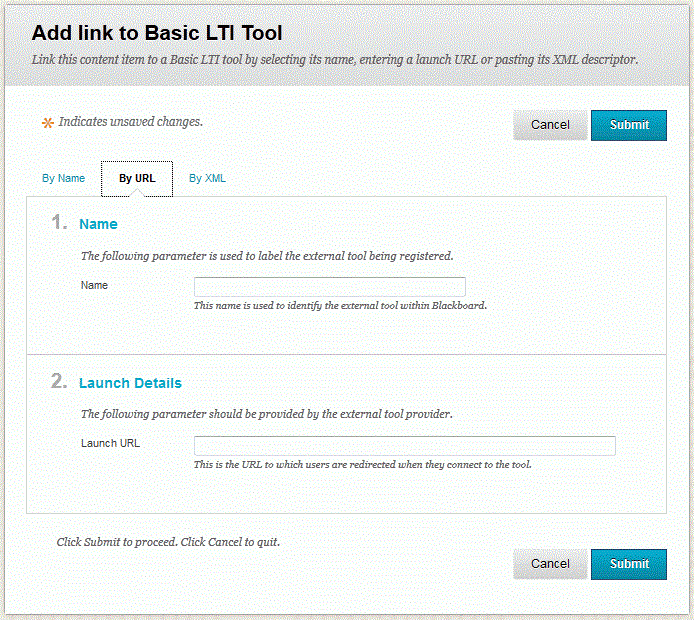
An instructor may add a tool as a content item in a course. When doing so the "By URL" tab allows them to register
a connection by entering a launch URL. A consumer key and secret may also be entered. However, if the URL matches a
registered domain, then any key and secret associated with the domain will be used. In this way an administrator may
enter the key and secret to be used by all tools for a specified domain leaving the instructor to only
enter the launch URL for the required tool.
Register by XML
A tool provider may distribute the connection details to their tool in the form of XML. Such descriptors may be pasted
into the box on the "By XML" tab to initialise the relevant settings.
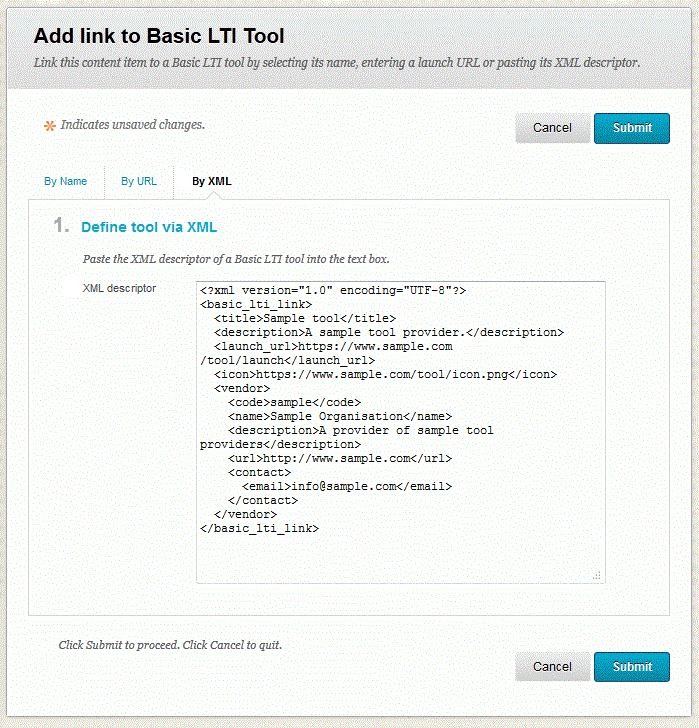
See below for more information on the XML format.
Data settings
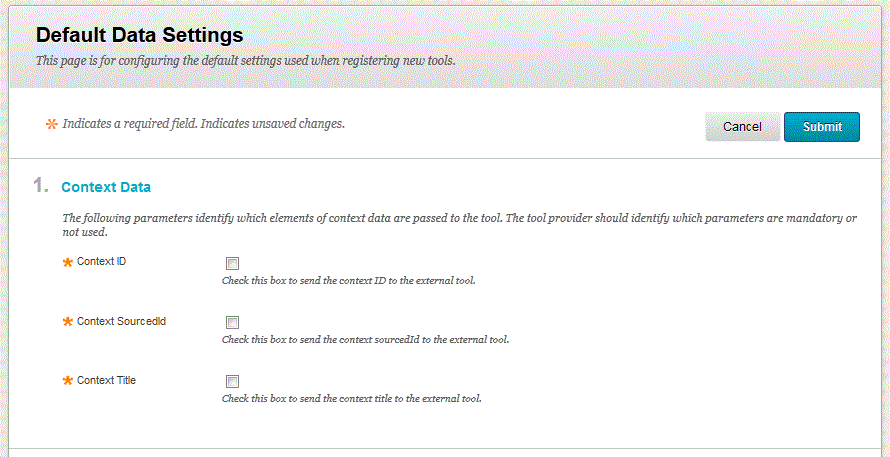
Each time an external tool is launched data about the user and their context (e.g. course) may be passed to the tool. Which data items are passed is controlled by the data settings page. When a new tool is registered the default data settings are applied - these default values are set up by clicking on the Default Settings button and selecting the Data Settings option. To override or change these for a specific tool, use the Edit data settings option from the action menu next to the tool's name.
Context data
A unique ID and a title will always be sent to the tool provider to identify the link followed by the user to launch
the tool. In addition to this it is also possible to send an ID and title for the course.
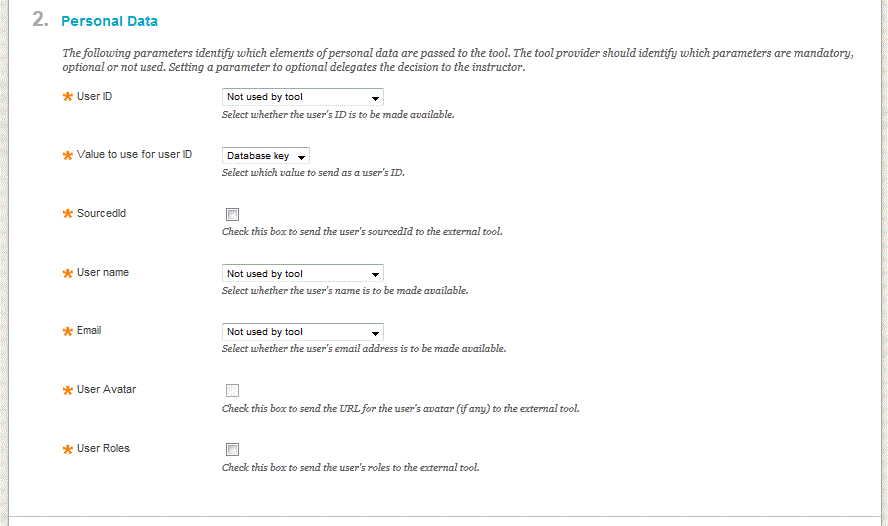
Personal data
A unique ID is normally required to identify a user and allow the tool provider to retain details of their
activities. The value to be used to represent this ID can be selected on this page; typically the database key
provides a convenient opaque value but is subject to change if a user account is deleted and restored. For internally
hosted tool providers, it may be preferable to use the username as the ID so that a more widely recognised value
is used within the other systems. It is also possible to restrict the sending of a user's name, email address, roles and
avatar (if enabled on the System Settings page above).
When a user's role is selected to be sent to the tool provider, their course role in Learn 9 is mapped to zero, one or more roles recognised by LTI:
- Instructor
- Content Developer
- Teaching Assistant
- Learner
- Mentor
This section determines which LTI roles (columns) are sent for each course role
(rows). The table will also include a row for each custom course role if the option to configure these separately
has been selected on the System Settings page (see above); when the option is not selected.
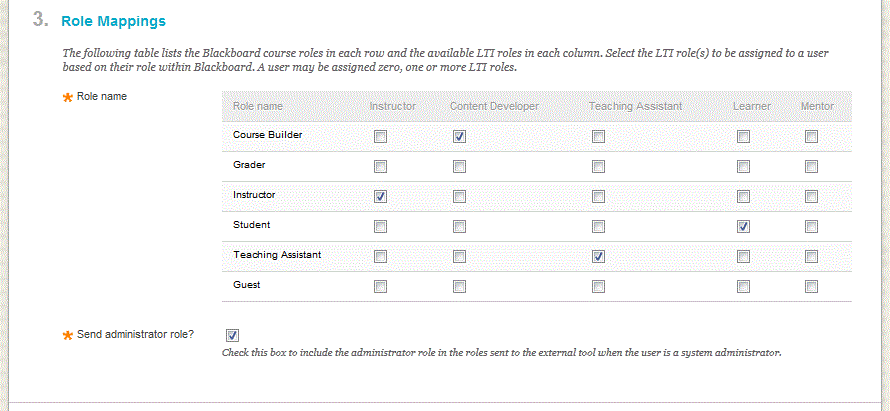
It is also possible to send the administrator role when the user is also a system administrator.
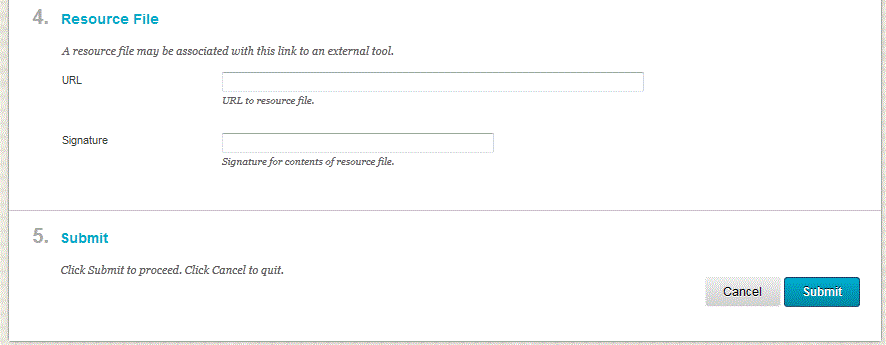
Resource file
The LTI specification also allows a URL to a resource file (with an optional signature) to be sent to the
tool provider. This section allows these details to be entered when required.
Launch settings
The Launch Settings page determines how the tool is launched and specifies any custom parameters
to be included in the data which is sent to the tool provider. When a new tool is registered
the default data settings are applied - these default values are set up by clicking on the Default Settings
button and selecting the Launch Settings option. To override or change these for a specific tool, use the
Edit launch settings option from the action menu next to the tool's name.
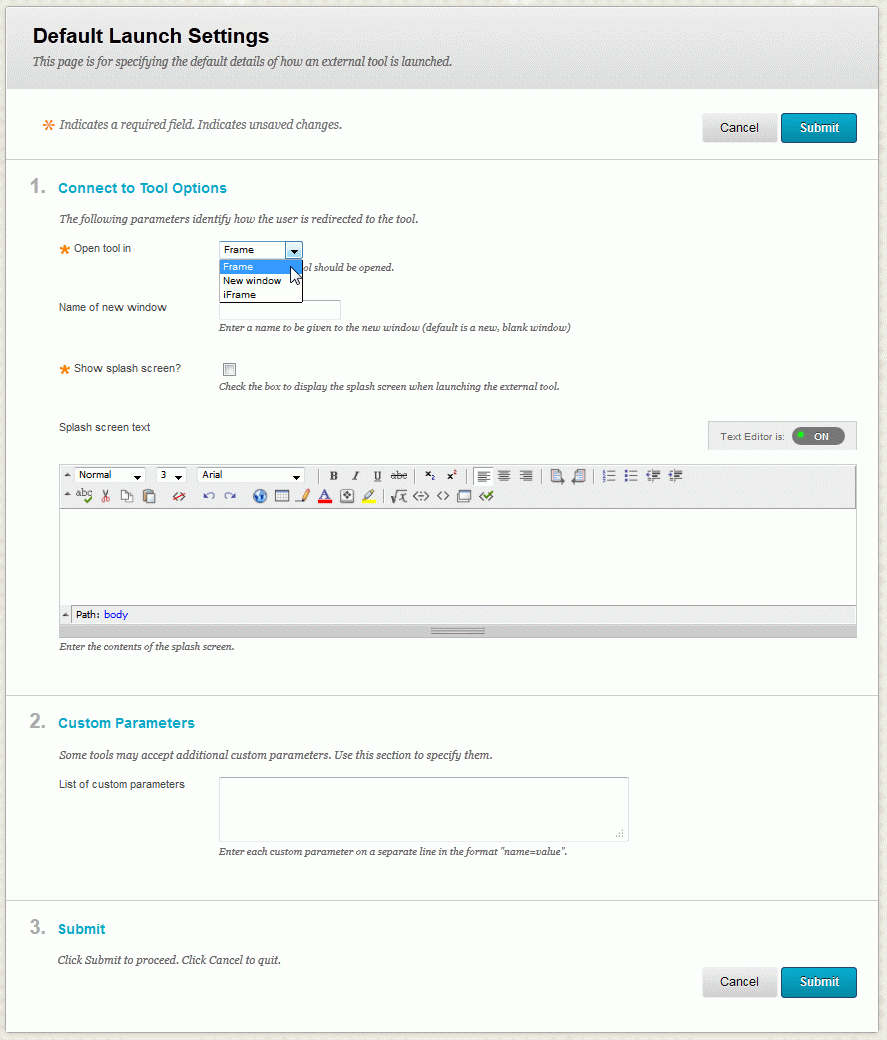
The tool may be opened in the Learn 9 frame, in a new window or in an iframe. The iframe option allows the course menu to be retained on the screen when accessing the tool from the Course tools page. When opening a tool in a new window, a window name may be specified so that the same window can be re-used each time the tool is opened. The window name should not start with an underscore. If no window name is specifed a default value of _blank is used.
A description of the tool can be displayed on a splash screen before a user is connected, If a URL is entered as the text the contents of this web page is displayed to the user.
Custom settings may be passed to a tool by entering one per line in the format name=value; for example:
timeout=300
It is possible to specify custom settings when configuring a tool as well as when creating an instance of a tool within a course. In the case where values are specified with the same name, the one specified on the tool configuration page will take precedence.
Using XML to configure settings
A tool or domain can be configured using the XML format defined in the LTI specification. The extensions section is used to allow a value for each configuration setting to be specified. The names and permitted values of these settings are listed below.
| Name | Description | Permitted values |
|---|---|---|
| guid | Consumer key | |
| secret | Shared secret | |
| administrator | Send administrator role? | true false |
| avatar | Send avatar URL? | true false |
| contextid | Send context ID? | true false |
| contextidtype | Which field to use as the context ID | P B C |
| contextsourcedid | Send context sourcedid? | true false |
| contexttitle | Send context title? | true false |
| Send user's email address? | M O N |
|
| ext_memberships | Enable Memberships extension service? | M O N |
| ext_memberships_limit | Restrict memberships to users for whom the link is visible? | true false |
| ext_memberships_groups | Allow group membership data to be sent to tool providers? | true false |
| ext_memberships_groupnames | An optional name prefix (or regular expression) to limit the groups which are sent | |
| ext_outcomes | Enable Outcomes services (LTI 1.1 and unofficial extension)? | M O N |
| ext_outcomes_column | Create a column in the Grade Centre when the link is created | true false |
| ext_outcomes_format | Display format for the grade centre column | P S |
| ext_outcomes_points | Set the points possible for the column | |
| ext_outcomes_scorable | Include the column in Grade Centre calculations | true false |
| ext_outcomes_visible | make the column visible to students in My Grades | true false |
| ext_setting | Enable Setting extension service | M O N |
| openin | Where to open the tool | F FNB W I |
| role.B | Mapping for Course Builder | I D T L M |
| role.G | Mapping for Grader/Marker role | |
| role.P | Mapping for Instructor role | |
| role.S | Mapping for Student role | |
| role.T | Mapping for Teaching Assistant role | |
| role.U | Mapping for Guest role | |
| roles | Send user's role(s)? | true false |
| splash | Display splash screen on launch? | true false |
| userid | Send user's ID? | M O N |
| useridtype | Which field to use as the user ID | P B N S |
| username | Send user's name? | M O N |
| usersourcedid | Send user's sourcedid? | true false |
| windowname | Name of window used to open the tool |
The setting option codes have the following meanings:
- M - mandatory
- O - optional
- N - not used
The contextidtype codes have the following meanings:
- P - Database primary key
- B - BatchUID
- C - Course ID
The ext_outcomes_format codes have the following meanings:
- P - percentage
- S - score
The openin codes have the following meanings:
- F - frame
- FNB - frame (no breadcrumbs)
- W - window
- I - iframe
The LTI role mapping codes have the following meanings:
- I - Instructor
- D - Content Developer
- T - Teaching Assistant
- L - Learner
- M - Mentor
The useridtype codes have the following meanings:
- P - Database primary key
- B - BatchUID
- N - Username (login name)
- S - Student ID
An XML description for a tool would be similar to the following example (note that the platform attribute should have a value of "learn" for this Building Block):
  My tool
  A simple example tool.
  https://my.server.edu/lit-launch/
  https://my.server.edu/images/mytool.png

    true


    true
    true
    true
    M
    F
    true
    M
    P
    M
    true
It is recommended that all setting values be specified in the extensions section so that the tool is completely configured via the XML, although those settings which do not impact the launch of the tool can be ignored if preferred.
Adding tools to content page menus
In Learn 9.1+, a link to a system-wide tool may be added to one of the content page menus. This allows instructors to select it by name to add it as a content item, without needing to select it via the Basic LTI tools option on the Tools menu. Each tool may be added to one of the following menus:
- Build Content: Create Item
- Build Content: Create Media
- Build Content: Create Other
- Build Content: New Page
- Build Content: Mashups
- Assessments
- Tools
- Publisher Content
To add one or more tools to one of these menus, tick the checkboxes for each tool and select the menu name from the Display on menu drop-down list. To remove tools from a menu, select None from the drop-down list.
Accessing tools via a module
A module may be created to access a system-wide tool as follows:
- navigate to the Modules page on the System Admin tab
- click on the Create Module button
- enter a title (such as the tool name)
- select Basic LTI tool as the module type
- select an appropriate category
- optionally enter a reference name and description
- set System Availability to Yes
- setting Allow Asynchronous Loading to Yes is recommended if a content feed is to be displayed within the module
- select the remaining options as preferred
- click on the Submit button to create the module and display the module admin page
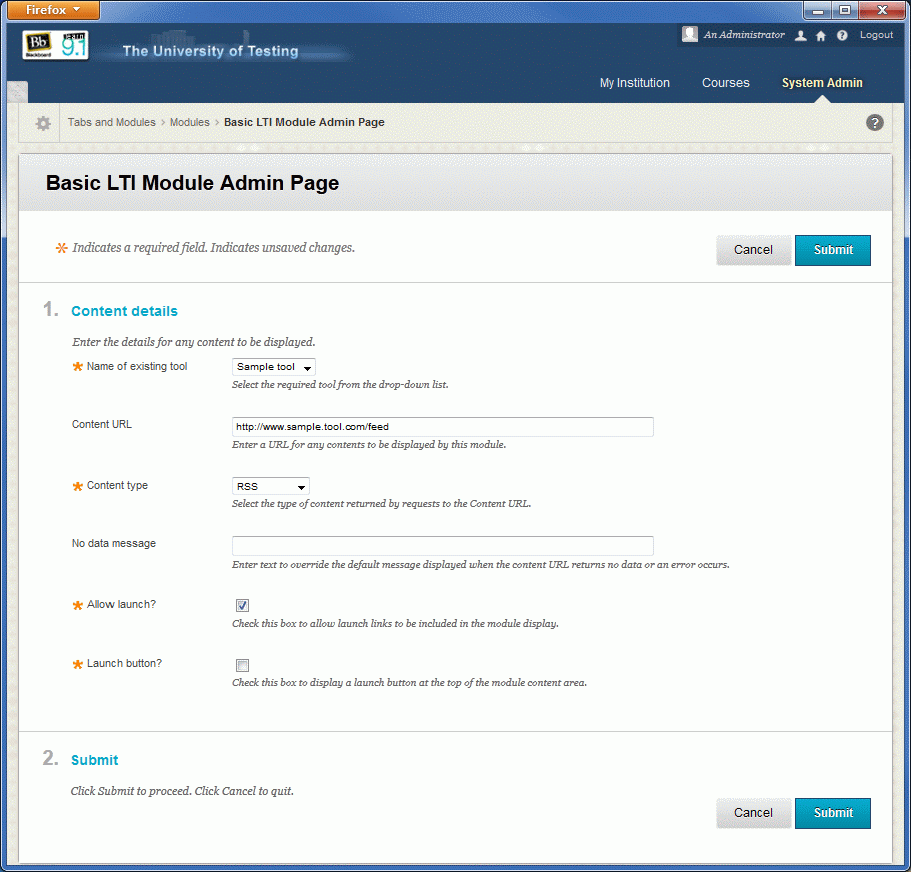
A module may contain a button to launch the tool. It may also contain the output obtained from an LTI request to a content feed URL; for
example, a dashboard summary for the user. The request is made direct to the URL passing the same parameters as on a launch; if the module
is not displayed within a course, then no context is provided. The output returned from the request may be in RSS or Atom feed formats or
HTML. A feed format is recommended so that the presentation fits as closely as possible to the user's Blackboard theme.
When using an RSS feed, the title element from each item are displayed as a list. An image element is displayed
if provided in the feed; if the Allow launch? setting is ticked the image will also act as a hyperlink to launch the tool, otherwise
the title element acts as the Alt text. The equivalent elements from an Atom field are title (within each entry),
logo and title. The optional No data message will be displayed when no data is returned from the request, is of the
wrong format or an error occurs. A default message of Sorry, unable to connect to server. is displayed when none is provided.
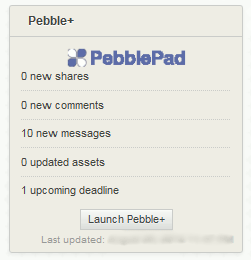
The date and time at which the content was generated is displayed in the footer to the module. Some memory-based caching of module content
is possible to avoid the requests being made too often (see the System settings). An example module display follows:
Usage
Basic LTI tools can be made available within a course via either the Course tools page, as a content item added to a content page, or as a hyperlink added via the text box editor. Each of these options can be made available to a course via the Tool Availability page accessed from the Customisation area of the Control Panel.
Course tools
The Basic LTI tools link in the Course Tools area of the Control Panel
displays a list of the tools which have been registered and enabled by the system administrator (see above).
If the option has been enabled (see above) the Register New Tool button may be used to define
a new connection for use only within the current course. The process for adding new tools is the same
as for system administrators (see above) and the action menu against the tool can be used to edit the
settings. For system-defined tools, the action menu provides a limited set of settings which can be
edited.
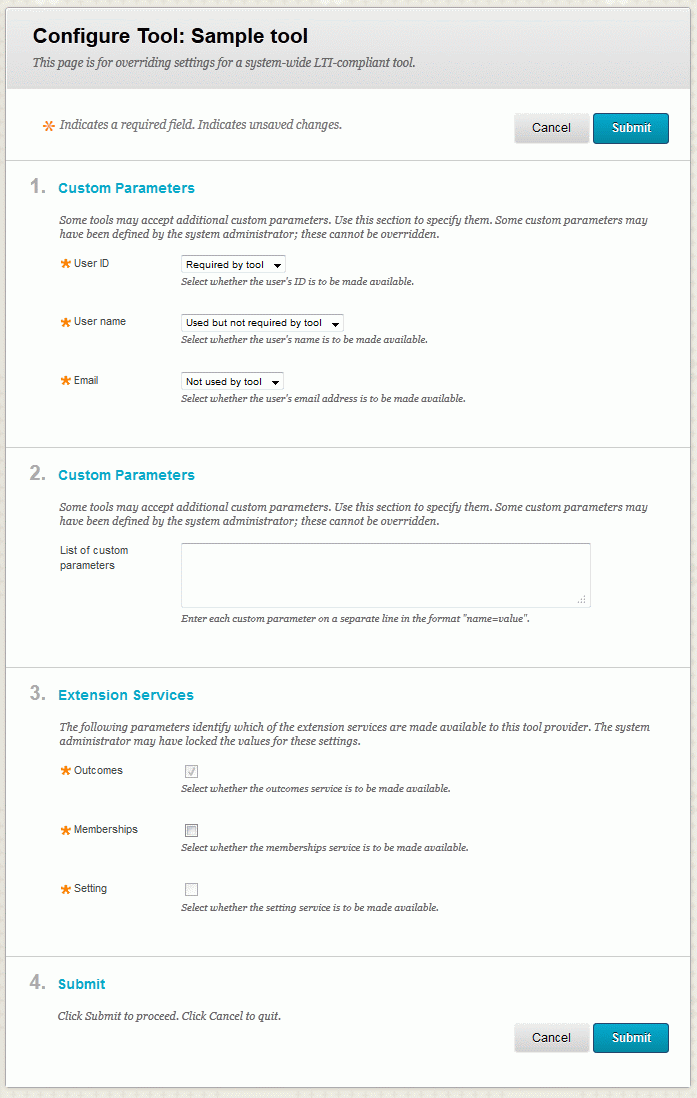
Some of the options on the page may be disabled or have limited choices as a result of how the tool or system has been configured.
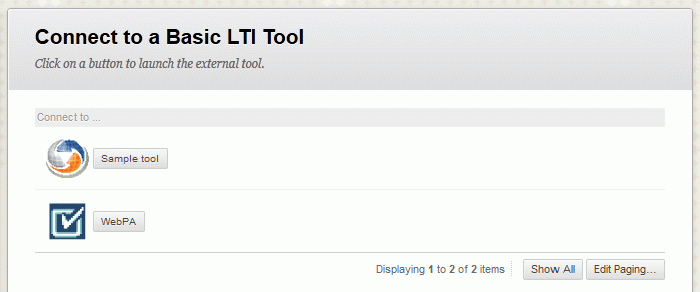
The Basic LTI Tools option available on the Course Tools page displays a list of the
tools which have been made available on the tools list (they will also be displayed in the same order as on this page).
If an icon URL has been specified for a tool, this icon will appear next to the tool name, otherwise the default
icon is displayed. Clicking on the tool name will launch the tool.
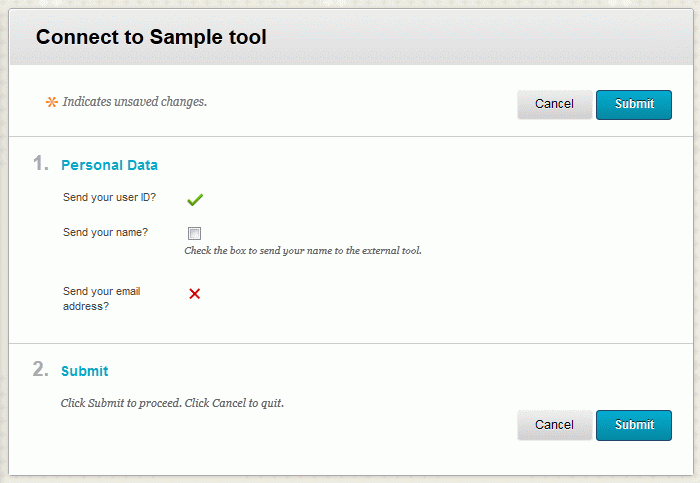
If a tool has been defined to show a splash page or if the user has been given a choice
about sending one or more data items, then a page is displayed before the user is redirected
to the tool.
The tool will be displayed in the bottom frame of Learn 9, within an iframe (as in the example shown below) or in a new window.
Content items
If a tool has been added to a content page menu (see above) it can be added to the page by selecting the menu item from the relevant menu, If not, then a link to a Basic LTI tool may be added to a content page as follows:
- navigate to a content page
- ensure edit mode is turned on
- select "Basic LTI tool" from the Tools menu
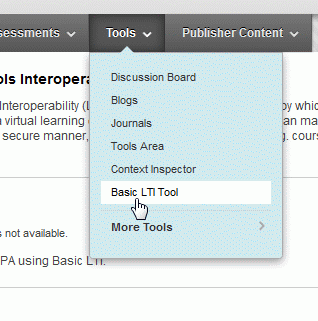
A tool may be selected in one of the following three ways:
- selecting it by name from the drop-down list
- entering a launch URL for a new tool
- pasting an XML descriptor for a new tool
The list of named tools will include all those which have been enabled on the System Admin tab
and also all those which are defined within the course (even if they are not available from the
course tools page).
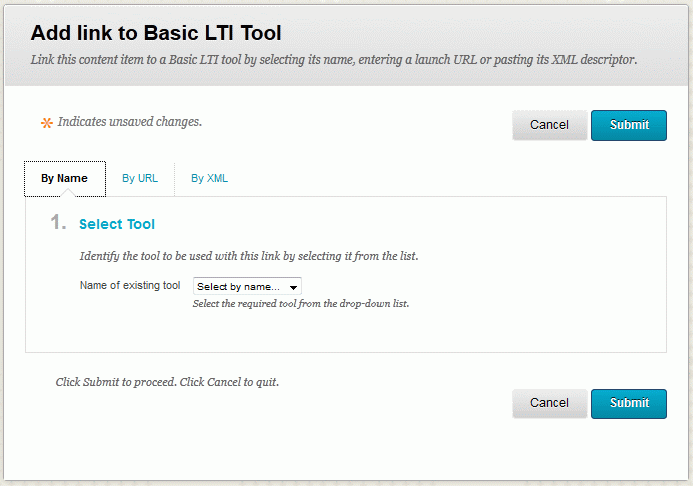
The process for registering tools by URL or XML is described in the "Registering a tool" section above.
Once a content item has been created, clicking on its name will redirect users to the tool. The item settings may
be modified by selecting the "Edit" from its options menu.
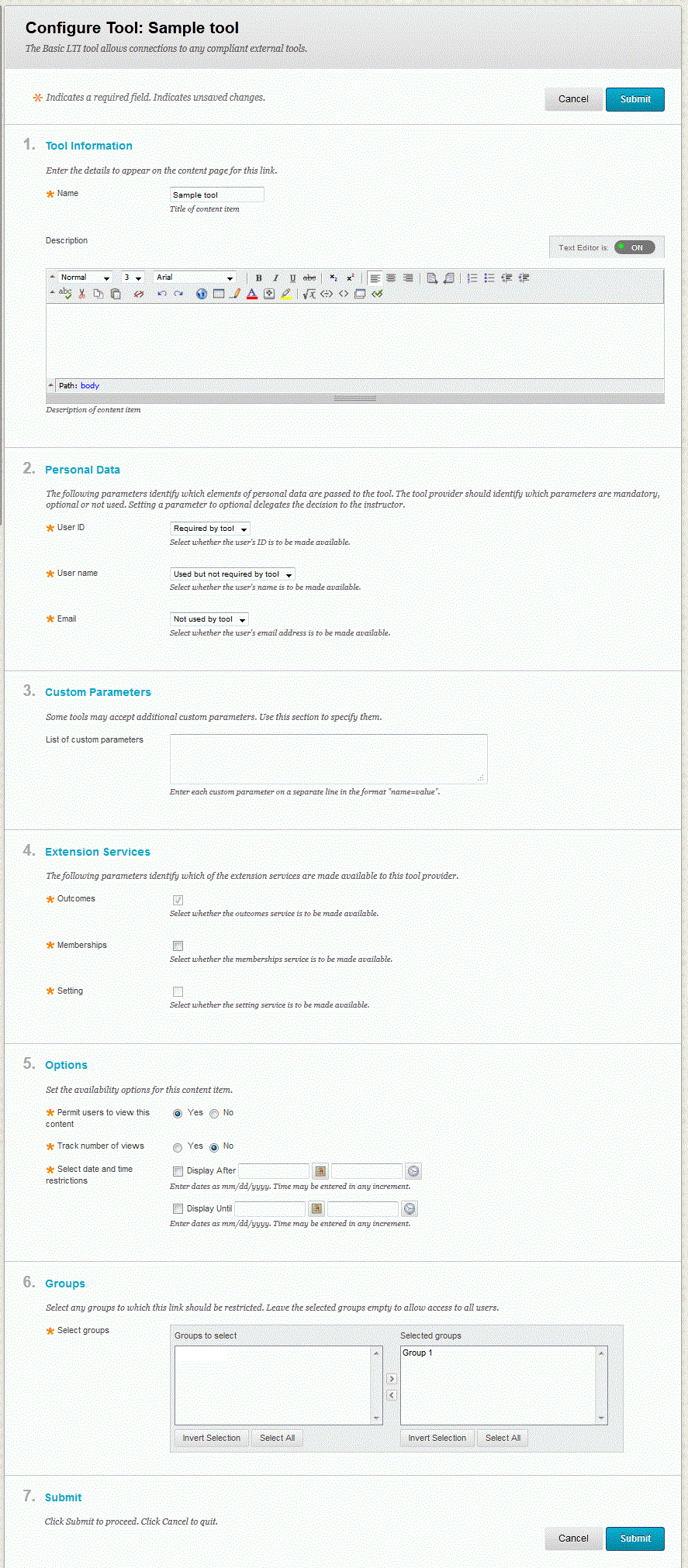
The settings are:
- name of the content item
- description for the content item
- connection details: launch URL, consumer key and consumer secret (not displayed for tools selected by name)
- sending of personal data: user ID, user name and email address (the tool registration may limit the available choices for these settings)
- custom parameters to be sent on launch (these are in addition to any which may have been set up with the tool/domain registration)
- extension services: outcomes, memberships and setting (the tool registration may limit the available choices for these settings)
- other settings: URLs for a CSS file and an icon file (not displayed for tools selected by name)
- general content item options:
- whether the item is displayed to users
- whether views are tracked
- a display after date/time
- a display until date/time
- groups to which access to the item should be restricted (this also affects the list of users returned by the memberhips service)
Mashup link
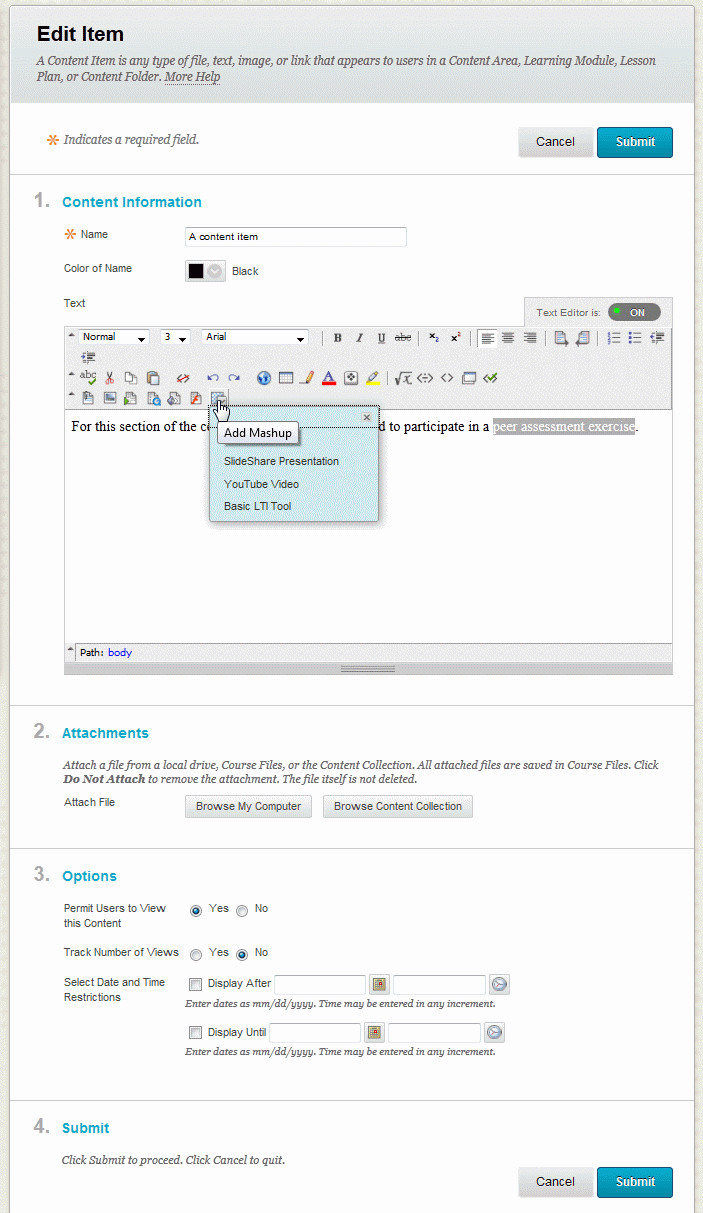
It is also possible to add hyperlinks to Basic LTI tools within the text of a content item. Such a link is added by selecting the
"Basic LTI Tool" from the "Add Mashup" button on the toolbar for the visual text box editor. To edit an existing hyperlink, place
the cursor within the link before selecting the mashup tool.
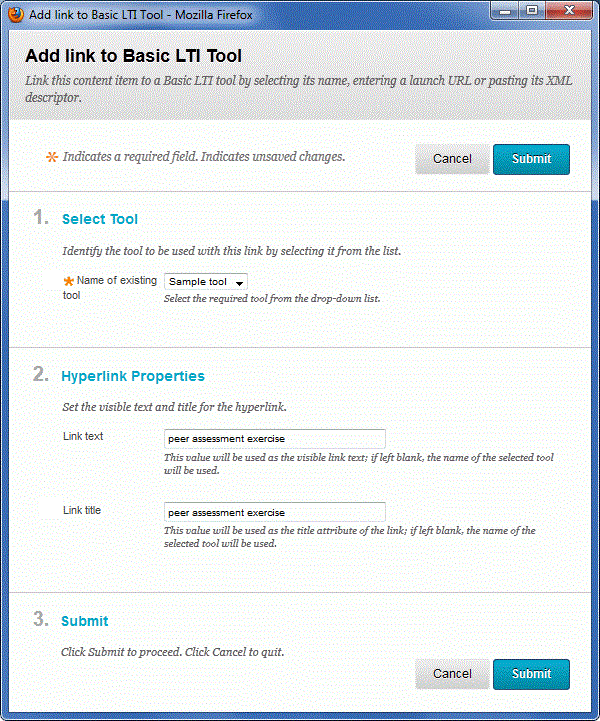
A popup window is displayed when the mashup tool is selected which provides a form from which to:
- select the tool to be linked
- enter the text to be displayed as the link
- enter the text to be used as the title attribute of the link
The value of the link text and the link title will default to any text which was highlighted in the visual text editor before
the tool was selected. Alternatively if the cursor was within a hyperlink then its link text and link title are
displayed in the form; if the hyperlink is to a Basic LTI tool, the tool is also selected in the drop-down list. If
the link text and title are left blank, the name of the selected tool is used for these fields.
Domains
Domains may be added via the System Admin tab. They provide default settings for tools registered by URL within courses. These settings may include a consumer-wide key and secret. When naming a domain any protocol, port number or query string are removed. A domain name may, however, include a path. When matching a launch URL against the list of registered domains, the longest match is selected over shorter ones. For example, if domains of "www.ltiapps.net" and "www.ltiapps.net/webpa" have been registered, then:
- "www.ltiapps.net/webpa" would be matched with the "www.ltiapps.net/webpa" domain
- "www.ltiapps.net" would be matched with the "www.ltiapps.net" domain
All tools registered in a content item by entering a launch URL must have a matching domain for a connection to be made. A typcial use case for domains would be:
- obtain connection details from a tool provider
- register the tool provider domain including the consumer key and secret
- within a course, add a content item, select the "By URL" tab, enter a name and the launch URL, submit the form
In this case, the instructor only needs to know the launch URL to add a link to the tool; the consumer key and secret from the domain are used on launch. If the domain has an icon URL, this icon will be used for launch URLs matching the domain.
A domain is either approved or denied; the latter means that it is blacklisted and any launch URLs which match the domain will not function.
Extension services
LTI 1.1 includes support for an Outcomes service which allows a tool provider to pass grades back to Learn 9. The Building Block also implements the unofficial extensions defined for Basic LTI; although these are not part of the formal IMS specification they are widely adopted by tool consumers and provide functionality of value to tool providers. Thus, the extensions available as part of this Building Block are:
- outcomes service (both LTI 1.1 and unofficial varieties)
- memberships service
- setting service
These services are enabled for each tool on the tool configuration page (see above). It is not possible to enable/disable the services for individual instances of the tool.
Outcomes service
This service allows grades to be retrieved, updated and deleted from the Grade Centre. The following kinds of result value are supported (note that LTI 1.1 only includes the decimal type):
- decimal
- percentage
- ratio
- letteraf
- letterafplus
- passfail
- freetext
A column in the grade centre is automatically added when the first grade is added. The column will have a name of "BLTI" followed by the ID of the content item or the name of the tool (for a course tool). The column is assigned to a category named "Basic LTI" (which is automatically created if it does not already exist) and given the following setting values:
| Kind | Column type | Points possible | Include in calculations? | Visible to students? |
|---|---|---|---|---|
| decimal | Score | 1 | No | No |
| percentage | Percentage | 100 | No | No |
| ratio | Score | See below | No | No |
| letteraf | Letter | 100 | No | No |
| letterafplus | Letter | 100 | No | No |
| passfail | Text | NA | No | No |
| freetext | Text | NA | No | No |
The points possible for a ratio-type value is the number following the "/" from the first update. If any subsequent grade is submitted with a different points possible, its value is adjusted to match the points possibel set for the column. For example, if a column is set up with a grade setting of "8/20", a subsequent grade update (for any student) of "12/15" will be adjusted to "16/20". Letter grades are converted to values based on the default grading schema set in Blackboard.
The result_resultscore_language, result_statusofresult, result_date and result_datasource parameters are ignored.
Note that this service is only available if it is selected on the tool configuration page and if user IDs are set to always be sent for the instance of the tool. The following error codes may be returned (as the codeminor XML element):
- Invalid request - required parameters missing
- Invalid signature - request signature not verified
- Invalid action - invalid action name
- Action not available - requested action is not available
- Security check failed - an invalid sourcedid has been passed
- User not found - this may be caused by an unrecognised user ID or by the user not having access to Blackboard
- Invalid role - this may be caused by the user not being enrolled as a student or not having access to the course
- Grade Center error - a system error occurred
- Result value missing - no value is provided for an update request
NB when using Learn 9.0, the column created in the Grade Centre is given a type of "Score" and should be changed manually to "Percentage", "Letter" or "Text" as required.
Memberships service
This service returns a list of enrolments for the course. The list will be a all users enrolled in the course unless the link to the tool is a content item which has been assigned to specific groups, in which case the list is restricted to all members of the selected groups and all instructors. If you wish to restrict the memberships list sent to the tool provider, it is important that the groups option on the settings page for a content item is used, rather than adding membership adaptive release rules. An option is also provided to limit the memberships list to those users able to view the link at that point in time; this list will also always include all instructors.
The memberships list may contain the following elements:
- user_id - a user's database key, username, batch UID or student ID (depending upon the selected tool configuration setting)
- roles - a comma, separated list of roles for the user (including system administrator if this configuration setting has been selected for the tool)
- person_sourcedid - a user's sourcedid (if this tool configuration option has been selected)
- person_contact_email_primary - a user's email address (if this value has been selected to always be sent for the instance of the tool)
- person_name_given, person_name_family and person_name_full - a user's name (if this value has been selected to always be sent for the instance of the tool)
- lis_result_sourcedid - a unique value which is used by the tool consumer to identify the tool instance and user
- user_image - URL to a users avatar image (if enabled)
Note that this service is only available if it is selected on the tool configuration page and if user IDs are set to always be sent for the instance of the tool. The following error codes may be returned (as the codeminor XML element):
- Invalid request - required parameters missing
- Invalid signature - request signature not verified
- Invalid action - invalid action name
- Action not available - requested action is not available
- Security check failed - an invalid ext_ims_lis_memberships_id has been passed
An additional message type has been added to the memberships service which adds group membership data to the service response. This option must be enabled on each tool registration page. It is also possible to limit the list of groups which are passed by specifying a name prefix or a regular expression. When specified, a group name must start with the prefix or match the regular expression to be included in the response.
Setting service
This service allows a value to be saved and retrieved for each instance of the tool added within Blackboard. The following error codes may be returned (as the codeminor XML element):
- Invalid request - required parameters missing
- Invalid signature - request signature not verified
- Invalid action - invalid action name
- Security check failed - an invalid ext_ims_lti_tool_setting_id has been passed
- Setting value too long - setting values cannot exceed 2048 characters
Troubleshooting
- After updating to a later version of this Building Block open its settings page to complete the update process.
- If you are upgrading to a new version of this Building Block and get an error on first access, try deleting and re-installing it. Note that any existing settings are not lost when the Building Block is deleted.
- If the outcomes service is not being made available, make sure it is enabled in the system and tool settings and that the user ID is configured to always be sent.
- Check that the URL, consumer key and secret have been entered correctly.
- The mashup tool may be disabled each time the Building Block is updated; navigate to the System Settings page to reinstate it.
If you still experience problems, or have other issues, please report them via the discussion forum available in the project area on the OSCELOT projects site.
Version history
| Version | Date | Description |
|---|---|---|
| 1.0.0 | 9 February 2010 | First public release |
| 1.1.0 | 2 August 2010 | Vendor ID changed to "osc" Added support for Learn 9.1 |
| 1.1.1 | 7 August 2010 | Updated dependent utility |
| 1.1.2 | 9 October 2010 | Added support for resource_link_title, resource_link_description, tool_consumer_instance_url, tool_consumer_instance_description and launch_presentation_document_target parameters Added support for return messages and log requests Added options for opening tools in a new window or an iframe Corrected name of lis_person_sourcedid parameter Option to define a new tool producer via XML withdrawn Improved exception handling when redirecting to a tool Fixed names of LTI roles on system settings pages |
| 1.2.0 | 17 September 2011 | Added support for outcomes, memberships and setting extension services |
| 1.2.1 | 10 October 2011 | Added ability to specify custom parameters for each instance of the tool, as well as for the tool configuration itself Fixed error in the XML when returning data from the outcomes extension service |
| 1.2.2 | 13 October 2011 | Fixed bug which caused instances added as content items not to be orderable on a page |
| 1.2.3 | 14 October 2011 | ext_lms added to launch parameters; e.g. "learn-9.1.70081" |
| 2.0.0 | 29 January 2012 |
Added support for LTI 1.1 (including Outcome service) Added ability for instructors to register their own tool connections within a course Updated user interface to separate settings into multiple pages Improved handling of return links back into Learn 9 from a tool provider Fixed iframe sizing issue when this option is used to display a tool provider |
| 2.0.1 | 20 May 2012 |
Updated namespace for LTI 1.1 Outcome service Added link to Basic LTI tools on Administrator Panel Miscellaneous bug fixes with default values of tools |
| 2.1.0 | 18 June 2012 |
Added support for domains, registering tools by URL and XML Use tool icons on content pages Added content item options to restrict availability to users (e.g. by date or group membership) Added Basic LTI tool mashup option to visual text box editor |
| 2.2.0 | 2 September 2012 |
Gradebook column names made the same as the content item title Added option to place tools as a named menu item on a content page menus (Learn 9.1+ only) Added option for adding LTI feeds to a module Fixed support for Learn 9.0 |
| 2.2.1 | 6 September 2012 | Fixed problem with links created using version 2.1.0 |
| 2.3.0 | 5 November 2012 |
Added option to place tools on the tools page in courses Options provided to select the groups enhancement to the memberships service and to limit it to groups with matching names Institution-level roles may be passed on launches from a module Option provided to create the associated grade centre column immediately rather than when the first service request is received |
| 2.3.1 | 17 December 2012 |
Fixed course copy issue for tools using Outomces service Added grade column options for points possible, whether column is included in grade calculations and whether it is visible to students Fixed session issue when launching tools from a module |
| 2.3.2 | 3 April 2013 |
This release contains a fix to a security vulnerability - it is recommended that all users upgrade to this release Allow instructors to defined tools by URL even when they are not permitted to create named tools (because such tools are managed via a domain setting) The format used to render an RSS feed in a module has been changed to better use the Blackboard tag library Fixed bugs when defining tools via XML Fixed bug with separating custom parameter definitions on some platforms |
| 3.0.0 | 30 October 2013 |
This is a major release based on the expected LTI 1.2 specification. It introduces extensible LTI services which can be discovered
via the Tool Consumer Profile and includes an implementation of the proposed LTI 2 Tool Settings service Tools may now be configured using XML obtained from a URL Two new launch message types have been added: configure-launch-request and dashboard-request |
| 3.0.1 | 5 November 2013 |
Fixed a bug with creating new system-level tools Renamed new launch message types to ConfigureLaunchRequest and DashboardRequest |
| 3.0.2 | 15 July 2014 |
Added support for April 2014 release of Learn 9.1 Removed support for Learn 9.0 A few minor UI bug fixes |
| 3.0.3 | 29 July 2014 | Fixed bug with adding service endpoints as custom launch parameters |
| 3.0.4 | 22 December 2014 | Added workaround for issue with October 2014 GA release - restart Learn 9 after installing with the October 2014 release |
| 3.0.5 | 24 December 2014 | Added further workaround for issue with October 2014 GA release - restart Learn 9 after installing with the October 2014 release |
| 3.1.0 | 30 May 2015 |
Added support for Content-Item messages Additional options for placement of LTI links including group tool, user tool, content editor |
| 3.1.1 | 12 November 2015 |
A few bug fixes for processing Content-Item return messages, and additional log messages Added a debug setting for increased message logging |
| 3.2.0 | 17 January 2016 |
Added ability to define associated settings for services Added registration option to allow tools to emulate launches made by core Learn 9 LTI functionality Added option to allow domains to be defined using a regular expression |
| 3.2.1 | 22 April 2016 | Added ability to perform an LTI launch from a module when a splash screen is to be displayed (only for April 2014 release and later). |
| 3.2.3 | 22 December 2016 | Updated support for Content-Item message to comply with final version of specification |
| 3.2.4 | 3 February 2017 | Fixed course copy conflict with a bespoke building block. |
| 3.3.0 | 23 April 2018 |
A major review of this application has resulted in numerous fixes for UI issues and bugs, including:
|
| 3.3.1 | 15 May 2018 |
Updated all logging to use log file in plugins directory Fixed bug with inheriting settings from a parent node Fixed bug in 3.3.0 with icon for placements on a course page |
| 3.3.2 | 20 May 2018 |
Added check that service remains enabled when processing requests Updated capabilities in profile (including withdrawing support for Context.label which was also returned as empty) Fixed issue with service body hashes using signature methods other than SHA-1 and SHA-256 |
| 3.3.3 | 27 May 2018 |
Fixed bug with ToolProxyBinding Settings service when the database key is not used as the context ID value. Removed option to disable signing of service requests |
| 3.3.4 | 30 May 2018 |
Automatically inject custom parameters for service endpoints into messages Fix bug when primary key not used as the context_id value for backward compatibility with context-based service endpoints |
| 3.3.5 | 16 July 2018 | Added support for the context history parameter when the Course ID is being used as the identifier for courses |
| 3.3.6 | 26 September 2018 |
Fixed initialisation of default availability option on System Settings page. Ensured that existing content menu options do not have their availability setting overridden. |
| 3.3.7 | 20 February 2019 | Fixes issue when adding a mashup link at the time of creating a content item. Added allowfullscreen attribute to iframe used for static content returned with the content-item message. |
| 3.3.8 | 24 February 2019 | Fixes issue when adding a mashup link which includes a launch URL at the time a content item is created. |
| 3.3.9 | 25 February 2019 | Disables HTML filtering of description fields for BasicLTI content items. |
| 3 November 2020 |
Added support for TinyMCE 5 editor NB Version number not changed - check the settings page to confirm the release date. |
|
| 11 December 2020 |
Updated to version 1.9.01 of B2Context dependent library NB Version number not changed - check the settings page to confirm the release date. |
|
| 5 October 2021 |
Fix issue with Chrome security settings and deep linking Fix issue with launching in a new window from Original Course View in Ultra Fix line item issue when creating content item Add missing default settings for new tools NB Version number not changed - check the settings page to confirm the release date. |
|
| 18 June 2022 |
Updated to version 1.9.02 of B2Context dependent library NB Version number not changed - check the settings page to confirm the release date. |
|
| 31 December 2023 |
This release contains a fix to a security vulnerability - it is recommended that all users upgrade to this release Fix missing URL encoding of query parameters NB Version number not changed - check the settings page to confirm the release date. |
|
| 6 January 2024 |
This release contains a fix to a security vulnerability - it is recommended that all users upgrade to this release Fix missing URL encoding of query parameters NB Version number not changed - check the settings page to confirm the release date. |
Licence
 This work is written by Stephen Vickers and is released under a
Creative Commons GNU General Public Licence.
The BasicLTI Building Block can be downloaded
from OSCELOT.
The source files are available from the ceLTIc Project repository,
where any issues should be reported.
This work is written by Stephen Vickers and is released under a
Creative Commons GNU General Public Licence.
The BasicLTI Building Block can be downloaded
from OSCELOT.
The source files are available from the ceLTIc Project repository,
where any issues should be reported.
